Category Archives: Uncategorized
Arnold for 3ds Max 2018 (MAXtoA)

New to Arnold for 3ds Max? Below are some useful links to get you up to speed.
Changes to Rendering in 3ds Max 2018. More information can be found on the Area website (essential reading).
The MAXtoA user guide can be found here (if you spot any errors, please email docs@solidangle.com).
I recommend the Rendering Your First Scene page to get you started.
There are some tutorials here (more incoming in the future).
A basic material library can be found here.

The Learning Scenes are a good place for experimenting with rendering different features with Arnold.

The version of MAXtoA that ships with 3ds Max 2018 is already out of date. You can get the latest MAXtoA release here.
An introduction to Arnold 5 video for 3dsMax 2018 can be found below.
A 4-part (4 video) tutorial on the 3ds Max youtube learning channel on Arnold in MAXtoA:
Arnold 5 is live!
Arnold 5.0 is now available. Please read the FAQ (MtoA) for details about transitioning to Arnold 5. More information here.


Yuki Yoshida
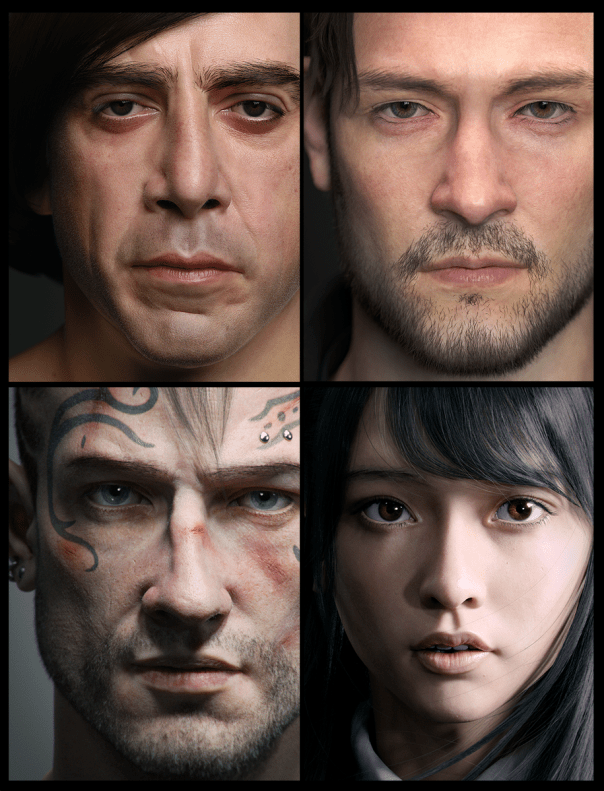
Some incredible work by Yuki Yoshida using Arnold for Maya. More examples on his website.
Arnold Dust Shader
Zeno Pelgrims has created a nice dust shader for Arnold for Maya (MtoA).

FROM SUBSTANCE PAINTER TO ARNOLD
Oliver Couston has created a great guide, showing the workflow from Substance Painter to Arnold.
Displaced Faces


I got some interesting results connecting texture maps to the UV Coords of an Ai Image shader recently.
A tutorial that shows the basic workflow can be found here.
5

Arnold Kicks Ass
SHADERS.XYZ
Zeno Pelgrims has created a shading community website that will host monthly material challenges, and will be used as a place to talk about shading/renderers/algorithms in general.
www.shaders.xyz


You must be logged in to post a comment.